pAI: AI Charlie Debate Bot Setup Instructions
This guide will help you set up and run the Charlie Kirk AI Debate Bot, part of the Personality AI (pAI) project. The bot simulates engaging debates in Kirk's style, drawing from his public ideas to foster critical thinking and truth-seeking dialogues. Follow these steps to get started.
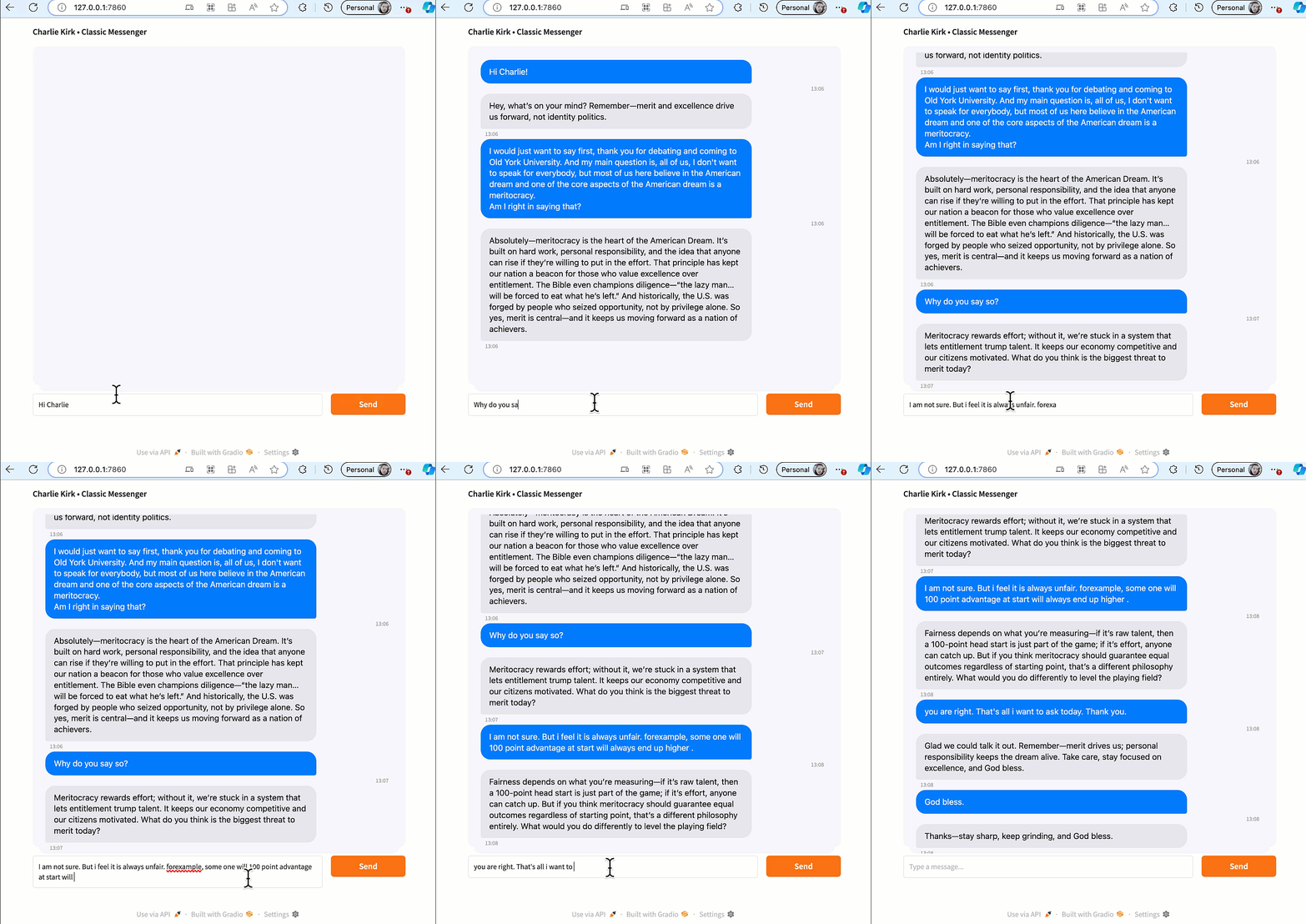
Welcome to pAI: Preserving the spirit of debate through AI. Dive into thoughtful conversations inspired by Charlie Kirk's ideas, fostering critical thinking for a better society.
1. Download and Set Up LM Studio
The bot requires a local language model server. We recommend LM Studio for its ease of use. It will host the fine-tuned model and provide the API endpoint.
- Download LM Studio from the official website: https://lmstudio.ai/. Choose the version for your operating system (Windows, macOS, or Linux).
- Install LM Studio by following the on-screen instructions. Once installed, open the application.
- In LM Studio's search bar to download the model. Type "Entz/gpt-oss-20b-pai-debator" to find the model.
- Click on the model in the search results and select "Download".
- Wait for the download to complete (it may take time depending on your internet; the model is ~13 GB).
- Once downloaded, go to the "Local Inference Server" tab (or similar—look for the server icon in the sidebar).
- Load the model: Select "Entz/gpt-oss-20b-pai-debator" from your downloaded models.
- Start the server: Click "Start Server" (default port is 1234). Note the API URL—it should be something like
http://localhost:1234/v1/chat/completions. You'll use this when the app is loaded. - Keep LM Studio running in the background while using the bot.
Note: If the model isn't found, ensure you're searching the exact name. No API token is needed for local LM Studio servers—leave it blank when the app is loaded.
2. Install Python Dependencies
The script requires a few Python libraries for the web interface and API calls.
- Ensure Python is installed (version 3.8+). Download from python.org if needed.
- Download my requirements.txt.
- In your terminal/command prompt, run:
pip install -r requirements.txt3. Download and Run the Script
- Download the script file ai_charlie_kirk.py from this GitHub repository.
- Open a terminal/PowerShell/command prompt and navigate to the directory containing the script, e.g.,
cd path/to/folder - Run the script:
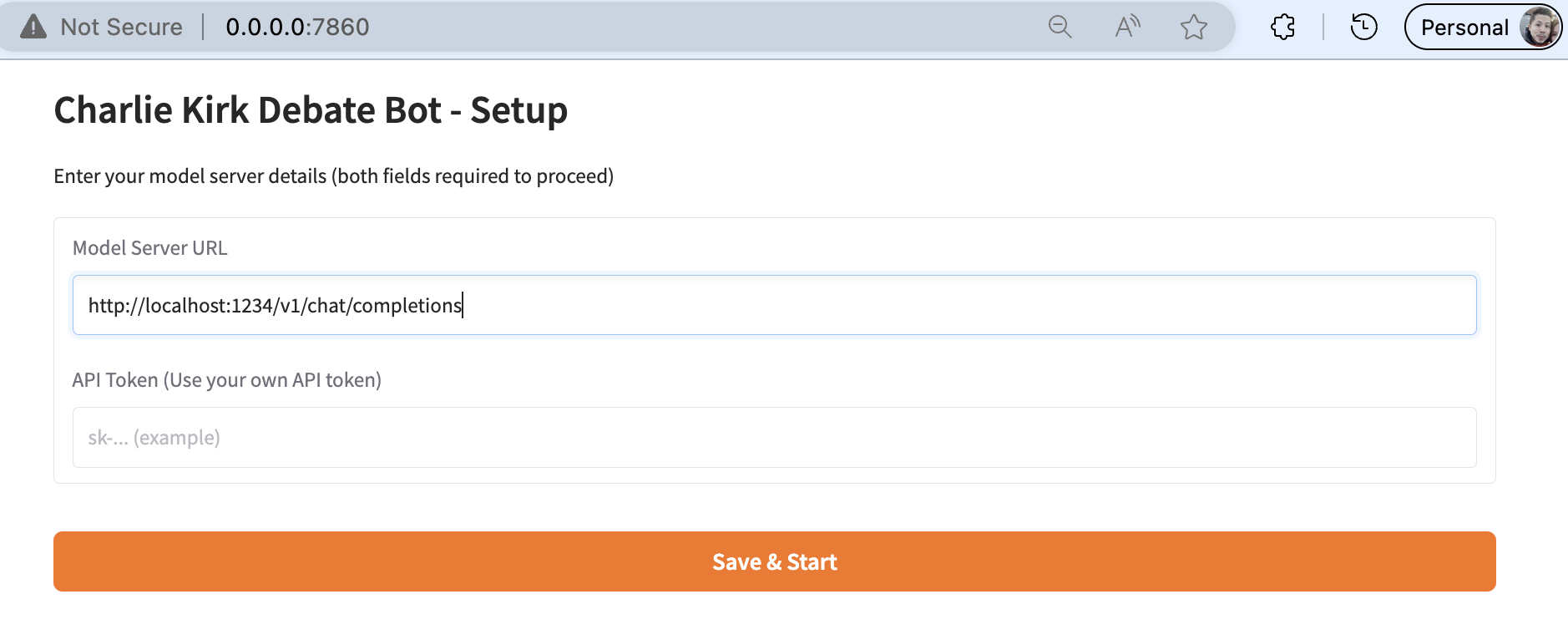
python ai_charlie_kirk.py - The script will launch a configuration screen in your browser (e.g., at http://0.0.0.0:7860). Enter your LM Studio API URL (from Step 1, e.g., "http://localhost:1234/v1/chat/completions") and leave the API Token blank (or enter if required by your setup).
- Click "Save & Start" to proceed to the chat interface.
4. Use the Chat Interface
- Once the chat loads, you'll see "AI Charlie Debate Bot" with a chat window.
- Type your message in the bottom text box (e.g., a debate opener like "What's your view on meritocracy?").
- Press Enter or click "Send". Your message appears on the right (blue bubble) with a timestamp.
- A "Typing..." indicator shows while the AI generates a response.
- The AI's reply appears on the left (gray bubble), building the conversation vertically.
- Continue the dialogue—history is maintained for context.
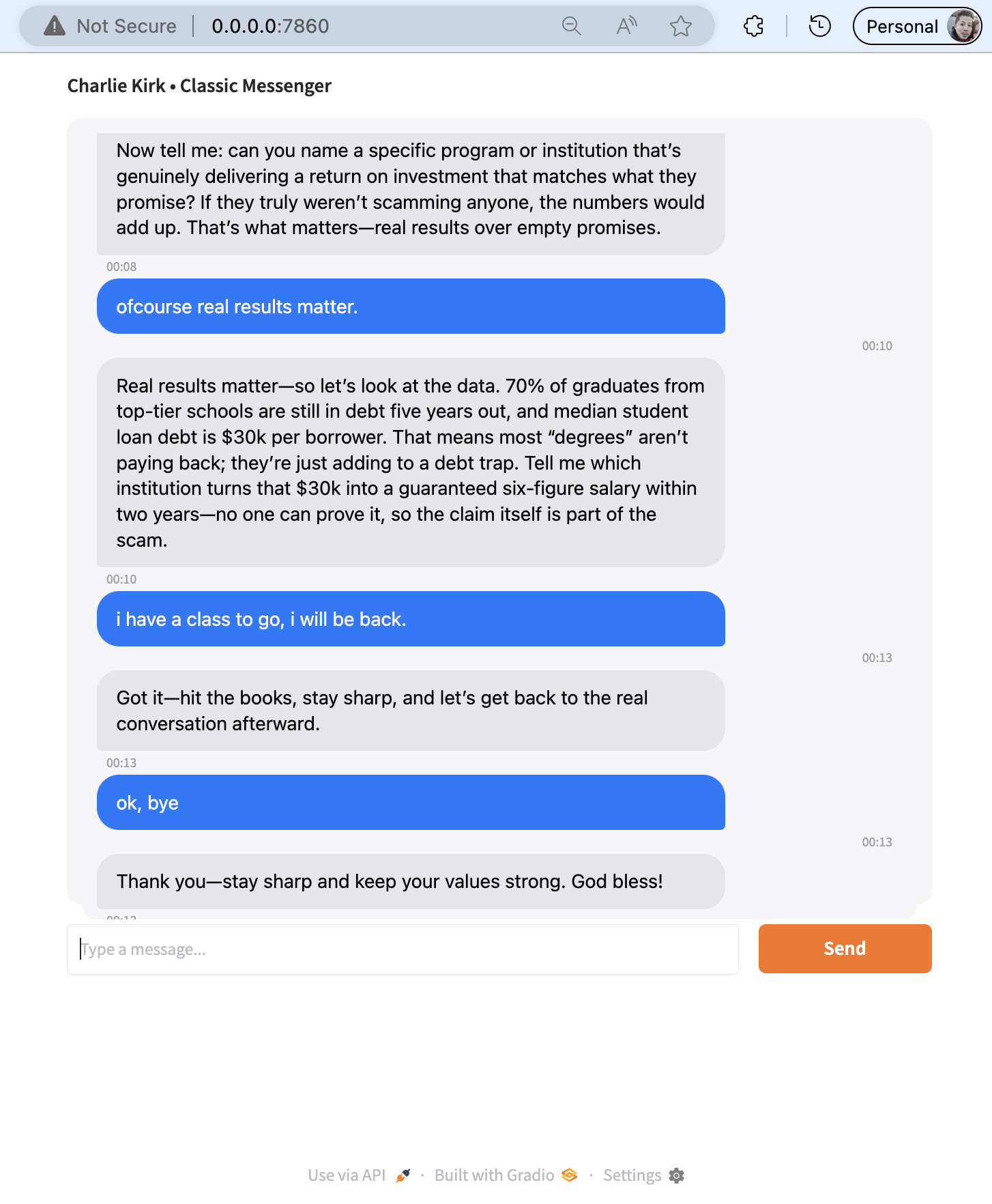
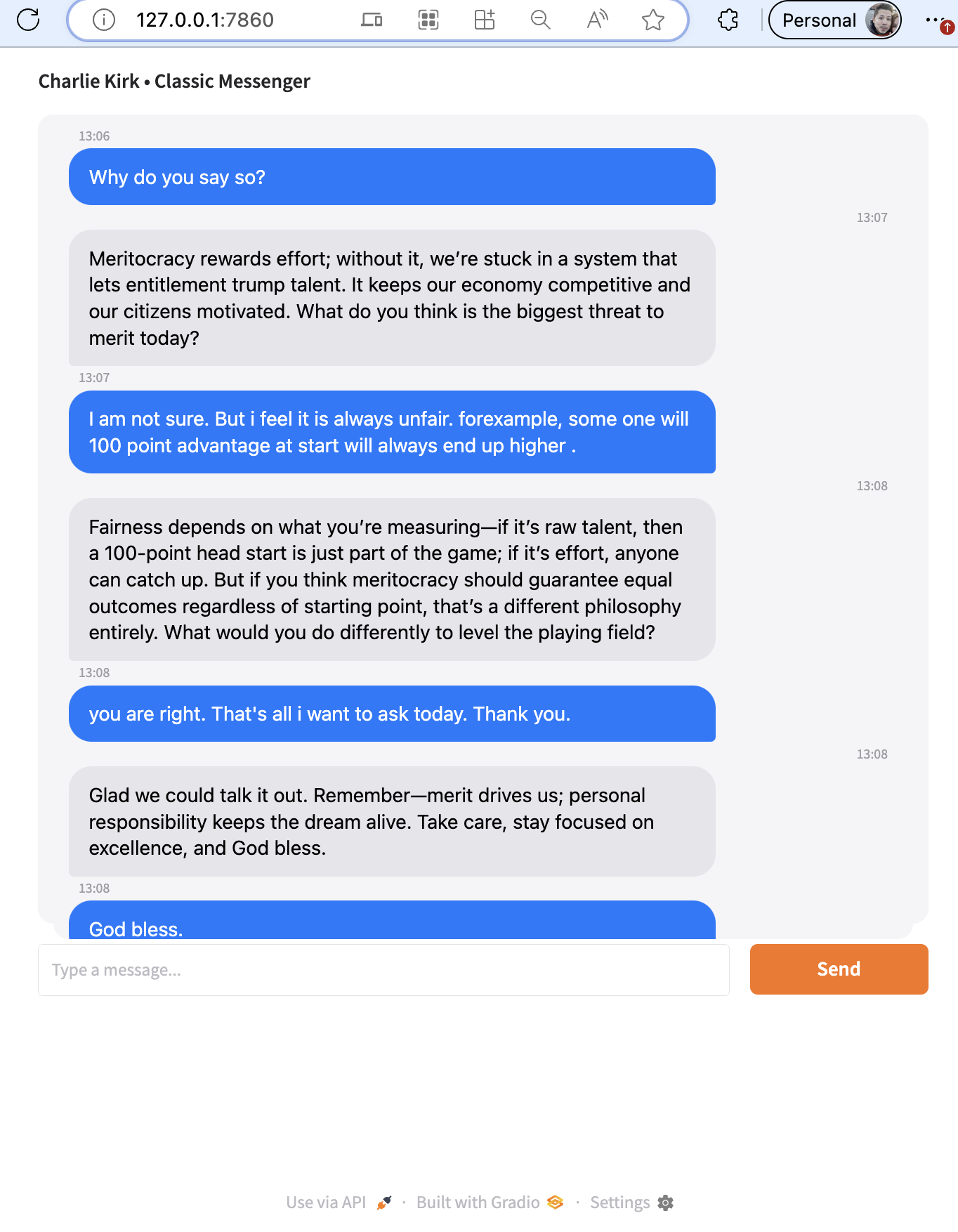
These images highlight the model successfully captured Charlie's confidence in his speech, and some phrases Charlie loves to say, e.g. "God bless!".
Note: Responses align with Kirk's public ideas; test on familiar topics for best results. Report misalignments via GitHub issues.
5. Troubleshooting and Tips
- If the API fails, check LM Studio is running and the URL is correct. Error messages will appear in the chat.
- Conversation history: Up to 12 messages for context; clears on restart.
- Stop the server: Press Ctrl+C in the terminal.
- Customize: Edit SYSTEM_PROMPT in the script for tweaks.
- For remote access: In the script, change
demo.launch()todemo.launch(server_name="0.0.0.0", share=True)(use cautiously).
Enjoy your debates! This is a tool for truth-seeking and cultural preservation—feedback welcome on GitHub.
Back to Home page